Download
Your download is starting...
The installer will download automatically. If it doesn't start, click here.
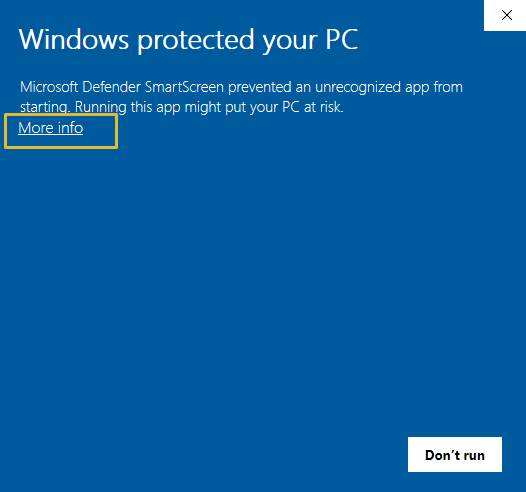
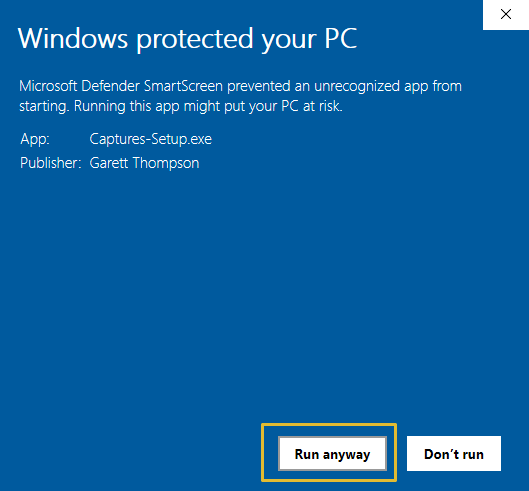
Windows will show a security prompt — here's what to do
Windows SmartScreen flags newly released software until it builds a download reputation. This is normal and temporary — it doesn't mean the app is unsafe.
Learn why on Microsoft's site → Two clicks and you're in.
1
Click "More info" in the blue SmartScreen dialog
2
Click "Run anyway" — the installer starts immediately
Get clipping in 4 steps
1
Run the installer
Open the downloaded
Clips-Setup.exe file. It takes about 15 seconds. No admin rights required.2
Launch Clips
Open Clips from the Start menu or desktop shortcut. It sits in your system tray — lightweight, always ready, never in the way.
3
Set your buffer and start playing
Choose how far back to record — anywhere from 1 minute to 2 hours. Clips runs silently in the background while you play.
Ctrl+Shift+C Save clip
Ctrl+Shift+X Open Clips
4
Hit the hotkey when something happens
Press your clip hotkey and Clips saves everything up to that moment. Trim it, share it to vyuu.com, or keep it local.